Manual / Getting started
Getting started
In a few minutes you install Monad, connect the AI and see your first app appear on screen.
What Monad is
Monad creates applications from a conversation. You describe what you want, the AI writes the code and shows the app working beside it, on your own computer. Nothing you create leaves your machine unless you publish it.
Monad does not come with AI credits: you bring your own connection (see Connect the AI). The subscription covers the application, the updates and support.
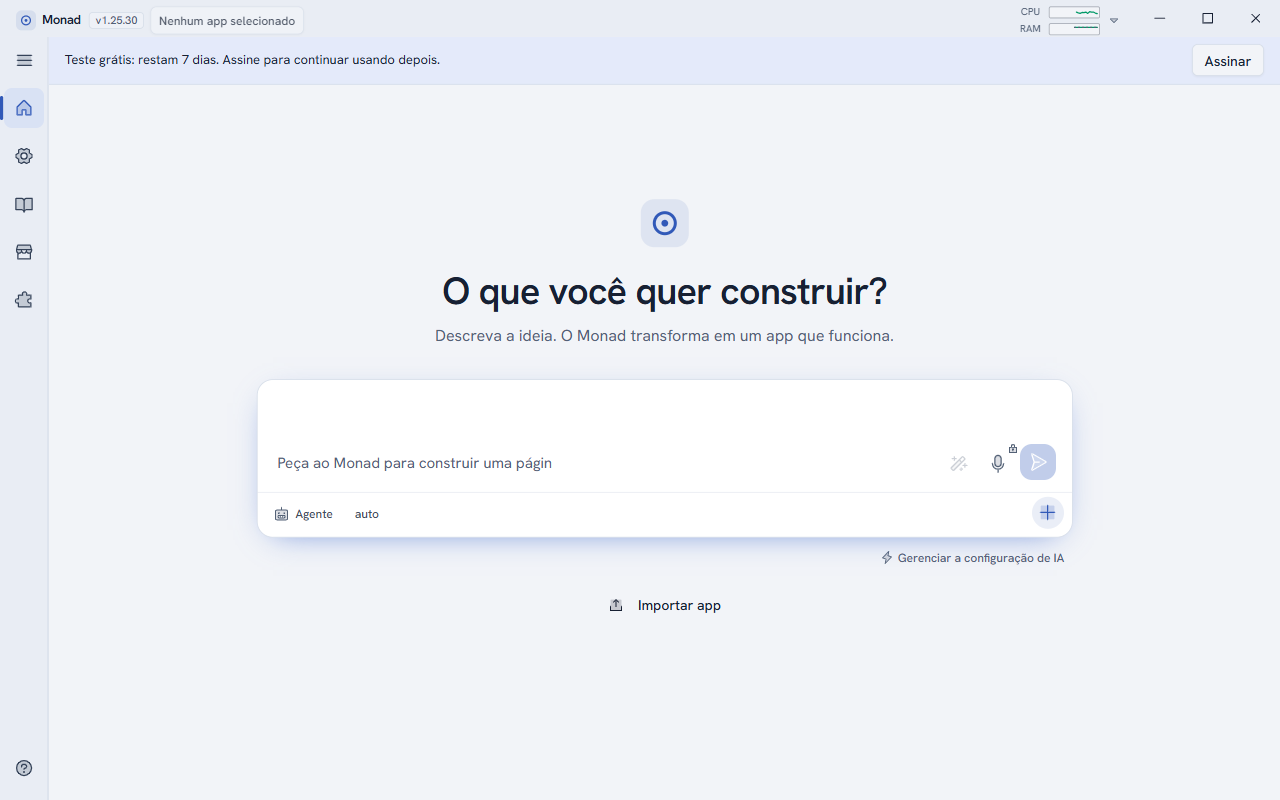
Install
- Download the installer from the home page (download button, 64-bit Windows).
- Run the file
Monad-Setup.exe. The installation is automatic and asks for no choices. - Open Monad from the shortcut created in the Start menu.
Automatic updates only work on the version installed by the installer. Monad checks for a new version on its own and downloads it by itself.
Free 7-day trial
Every new computer has a 7-day trial with everything unlocked, no card and no sign-up. The blue strip at the top of the application shows how many days are left: "Free trial: 7 days left. Subscribe to keep using it afterwards."
Subscribe and activate the license
- Subscribe at monad.dragaonegro.com/assinar or with the Subscribe button in the top bar. Create your account (name, e-mail and password), choose the plan and pay.
- After the payment, the key arrives by email, in the format
MND-XXXX-XXXX-XXXX. - In Monad, open Account (the person icon in the menu on the left), paste the key in the license section and click Activate. If you prefer, use the E-mail and password tab.
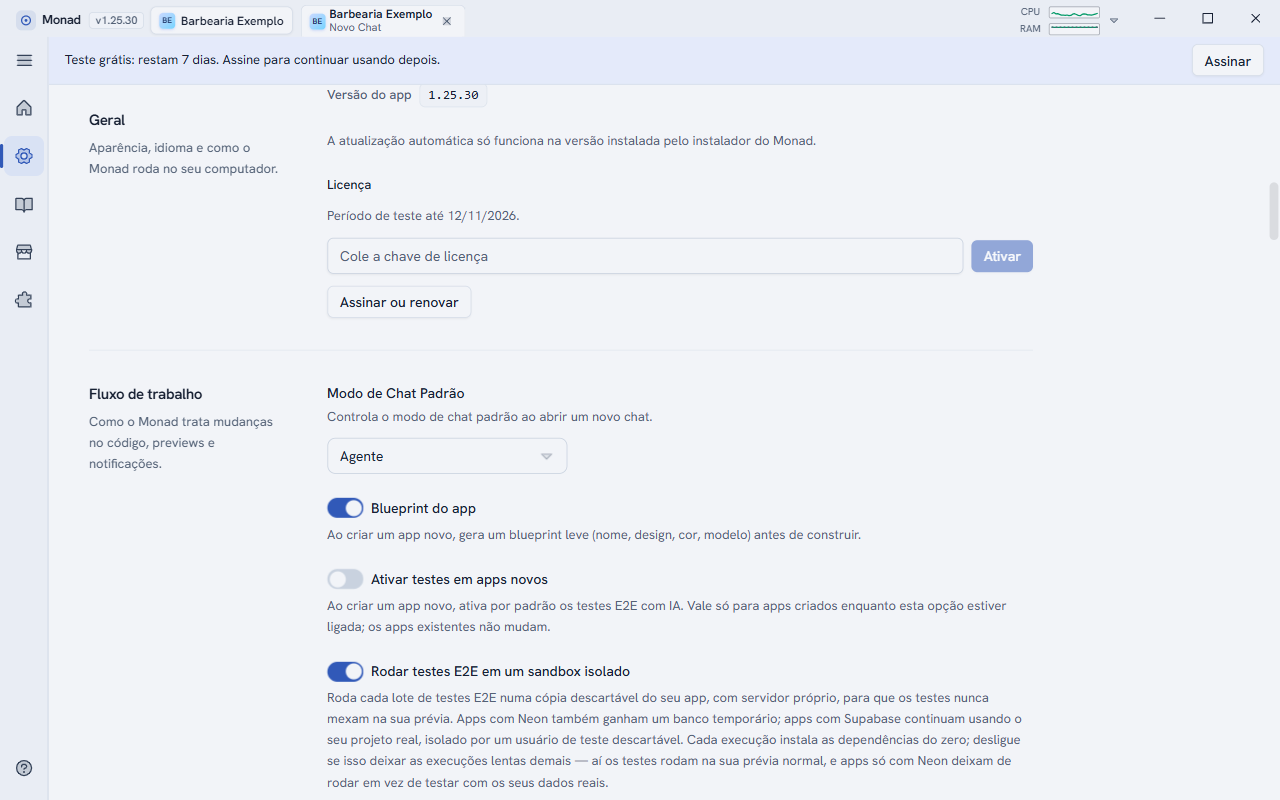
Once activated, the screen shows your name, email, plan, the expiry date with the days left and the linked computer.
One license, one computer
Each license is valid for one computer. To switch PCs, ask support to release the change and activate the key again on the new computer.
If the payment is late
Monad keeps working for 7 days of grace and warns you in the top strip. After that, the application locks until the account is brought up to date. Your projects stay saved on the computer.
The license renews itself every few hours. Without internet, it stays valid until the end of the period, plus the grace period.