Manual / The app panel and versions
The app panel and versions
When you open an app, the panel on the right brings everything together: see the app running, read the code, publish and check problems.
The panel tabs
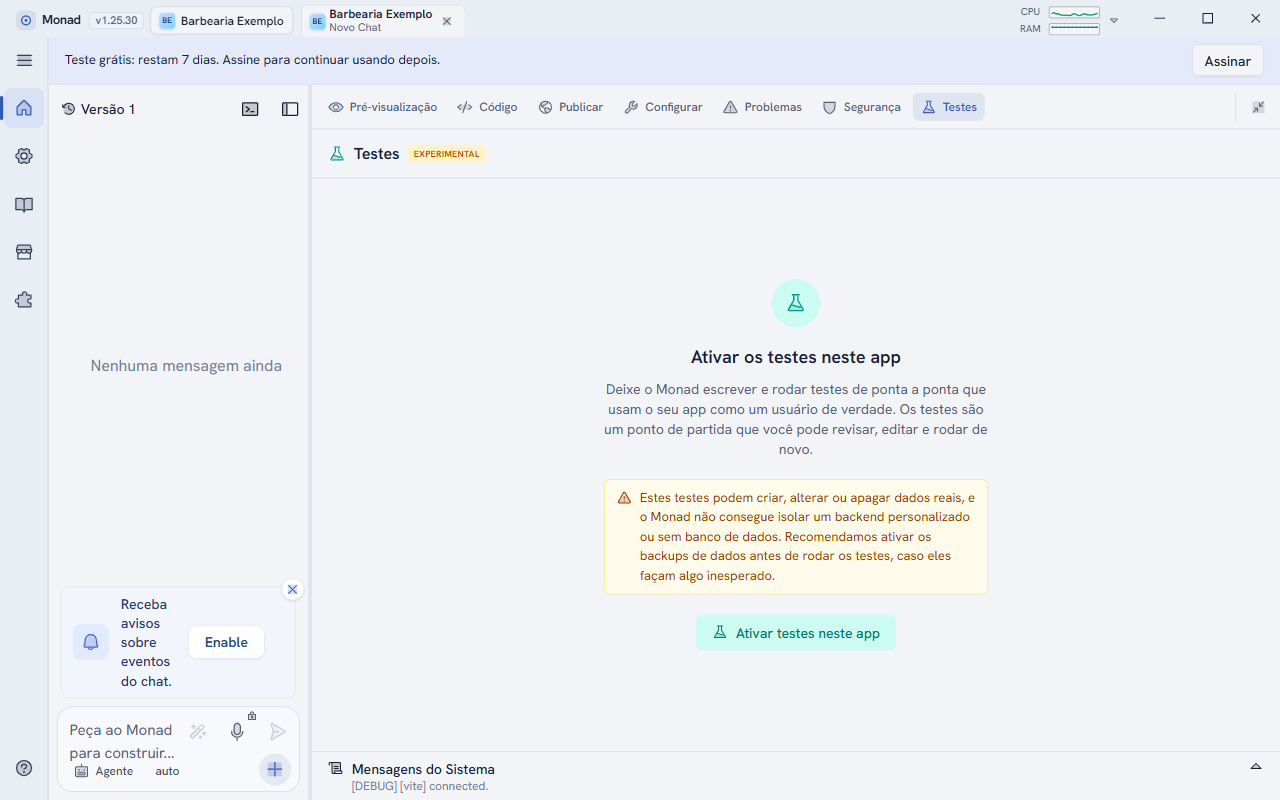
With an app open, the panel on the right has seven tabs: Preview, Code, Publish, Configure, Problems, Security and Tests. The chat is on the left; the button in the panel's top corner expands or collapses it.
The preview
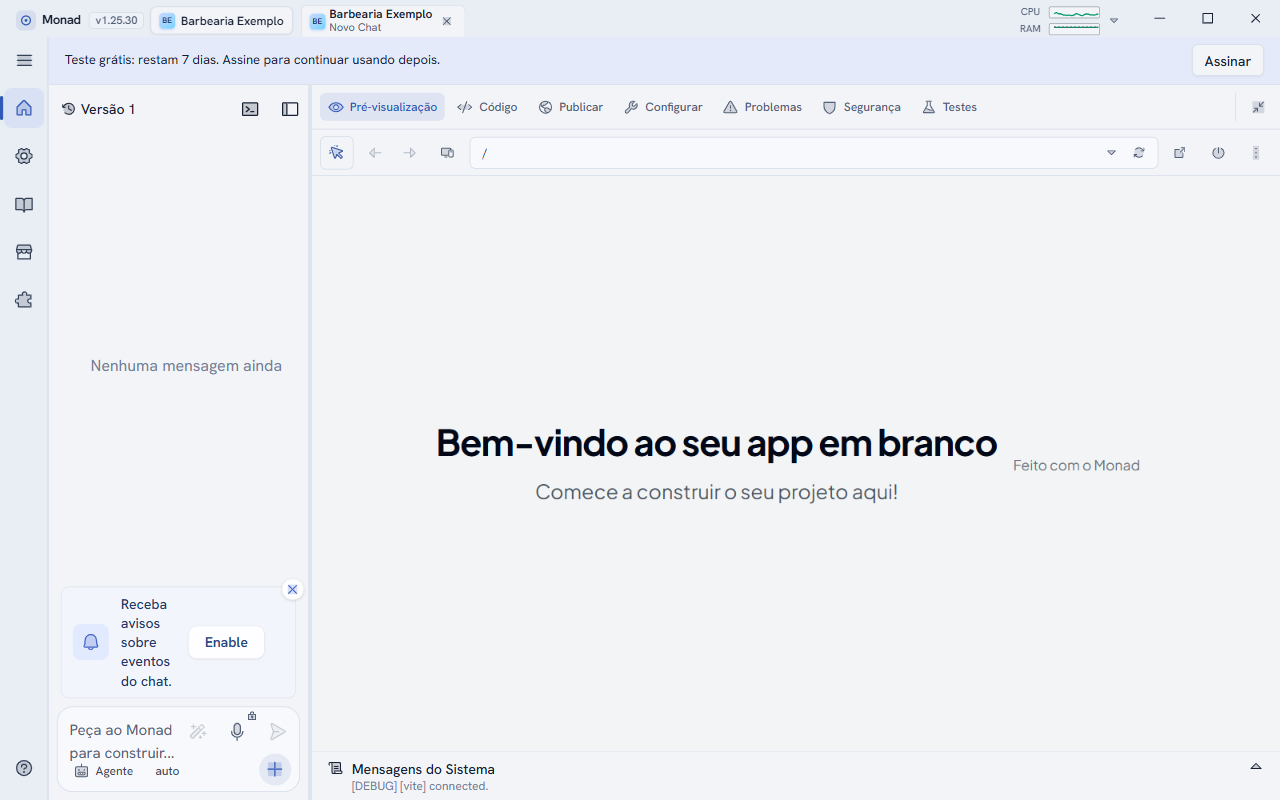
- The bar above the preview has back, forward, screen size, the address (just the path, for example
/contact), reload, Open in browser and the on/off button to restart the app. The ⋮ menu also has Rebuild, which reinstalls the dependencies. - The first button on the bar selects an element on the page so you can ask for a change to it.
- In System Messages, at the bottom, the logs of the running app appear.
- Each app uses its own address (
app-N.localhost) and one app's login cookies do not leak into another. If you want to adjust this, go to Settings > Experiments > Isolate preview sign-in cookies and restart Monad.
Code and commits
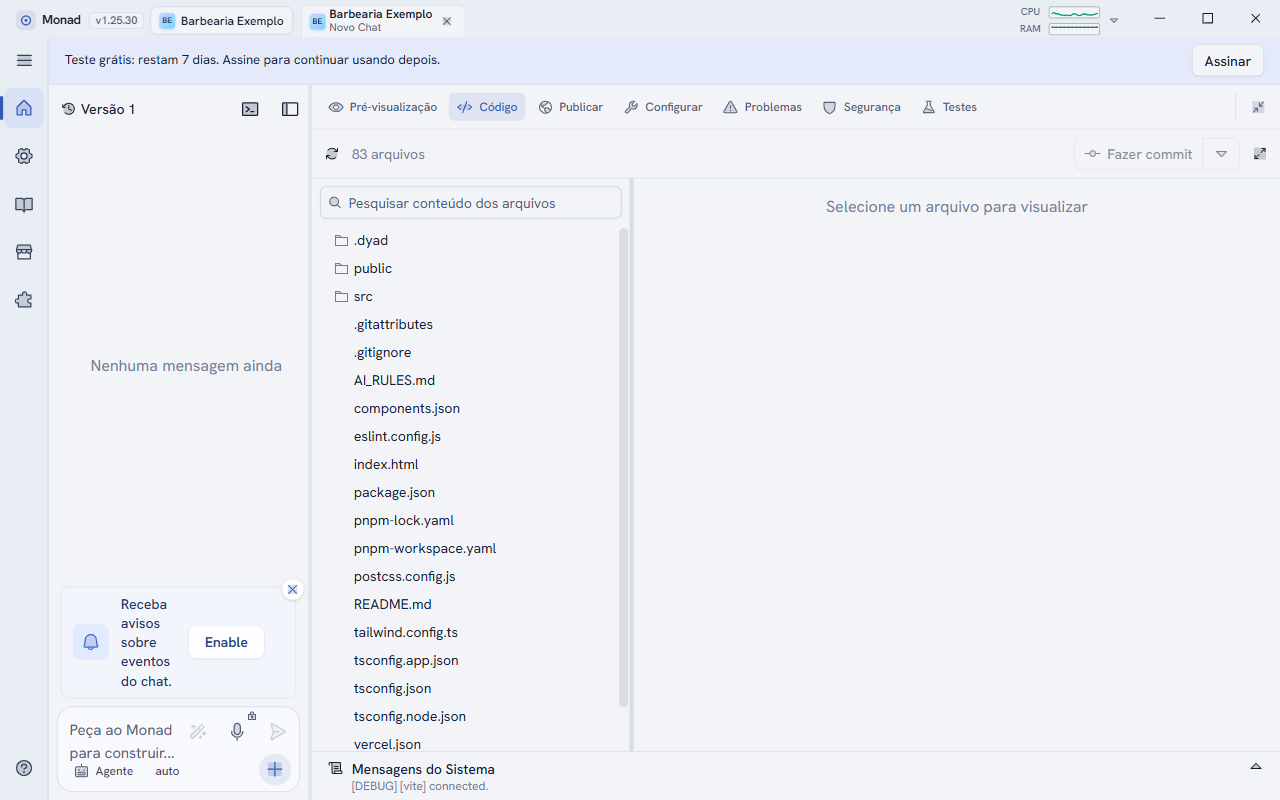
You can read any file and search by content. Each app is a Git folder: every AI change becomes a version, and the Version button above the chat shows the history, from where you can undo changes.
Check before publishing
Ask the AI: "run the production build". The build runs on an isolated copy of the project, so you can keep chatting and editing while it works. The result applies to the copy taken at the start.
Security and tests
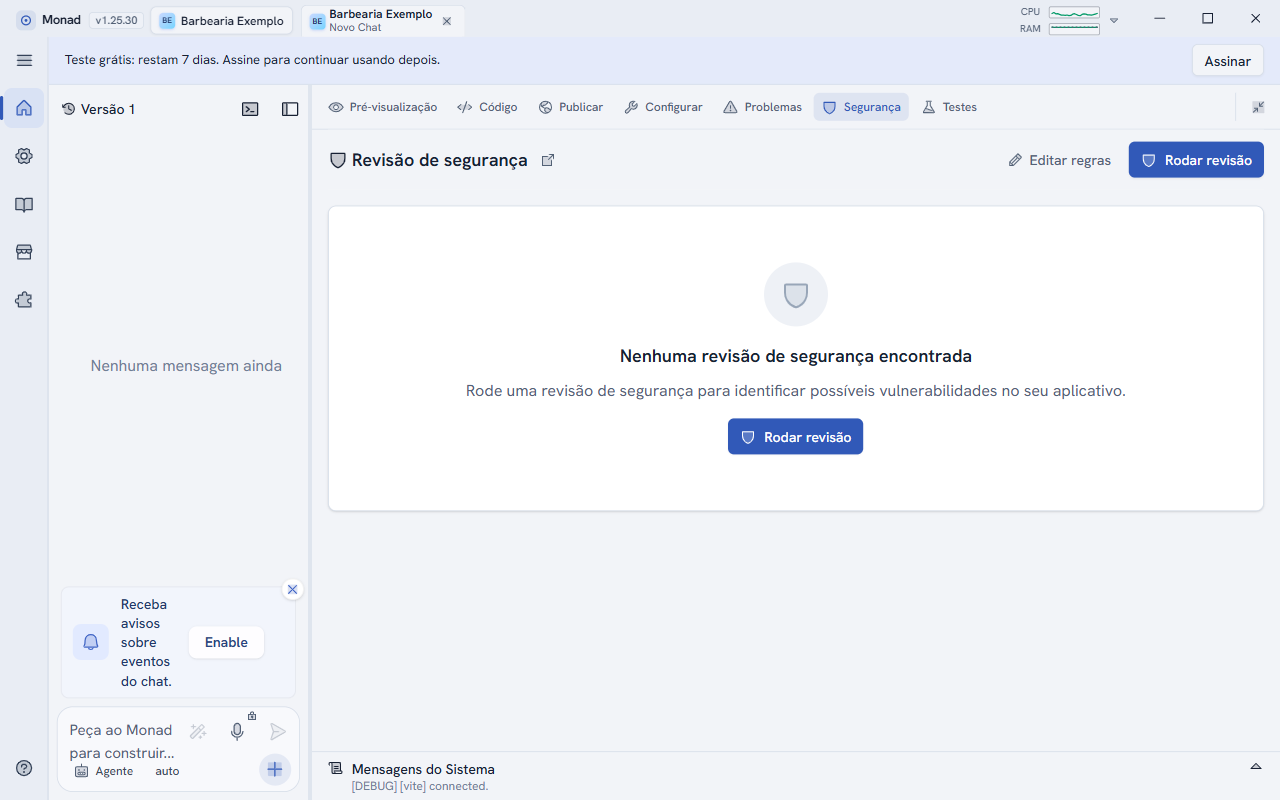
The security review lists findings by severity and lets you ask for the fix. Treat the result as support, not a complete audit.
Protect your work
- Monad keeps backups of the local database. If it is damaged, it is recovered from the most recent backup when it opens.
- Close Monad with the normal button before turning off the computer. Forcing it to quit can damage the database.
- Also make your own copy of the apps folder from time to time (by default, the
monad-appsfolder in your user folder; you can change it in Settings > General > Customize apps folder).
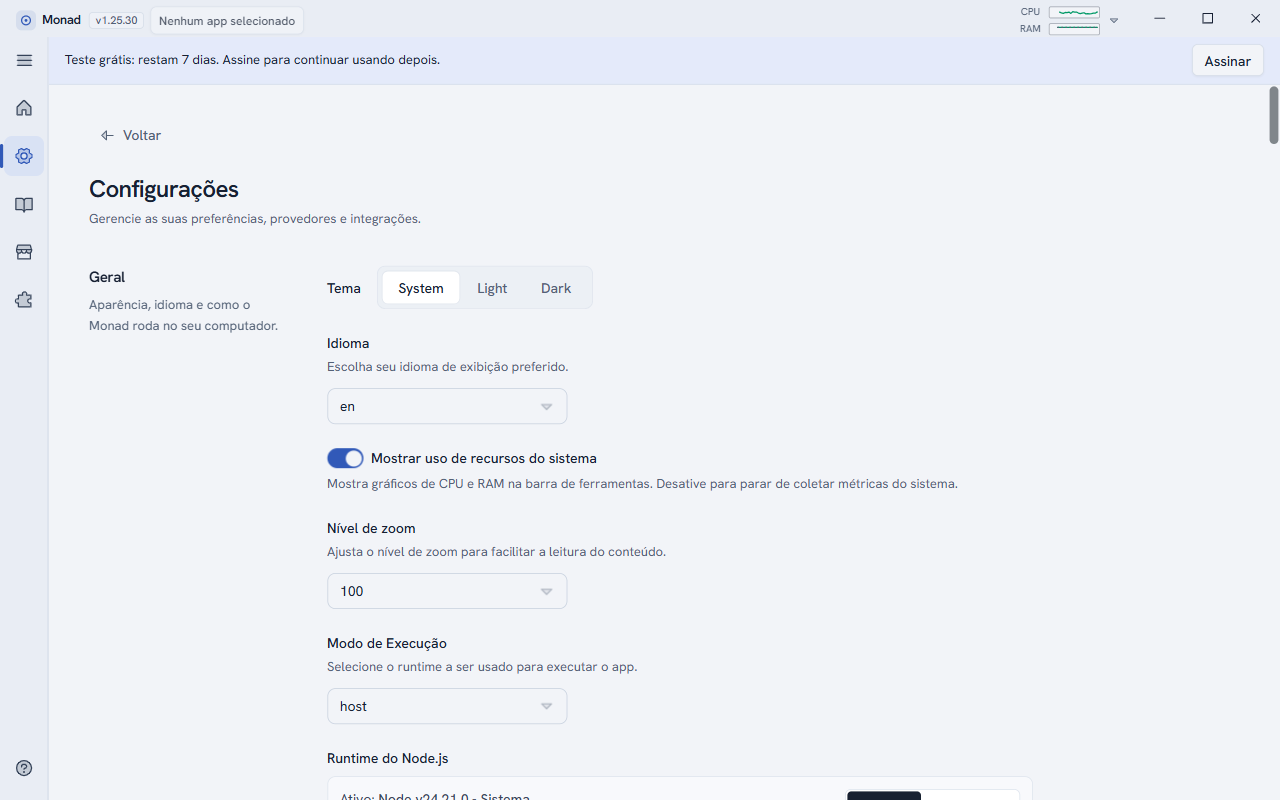
CPU and memory usage
In Settings > General, the Show system resource usage option controls the small CPU and RAM graphs in the corner of the title bar. Click them to see larger graphs for the whole computer.